> ## Documentation Index
> Fetch the complete documentation index at: https://docs.stoneturner.app/llms.txt
> Use this file to discover all available pages before exploring further.
# Quickstart
> Connect your agent to the Stoneturner MCP
# Connecting to Stoneturner
There are two ways to connect your agents to Stoneturner:
We take care of data storage and incremental syncs so your agents can search your data from anywhere
Your data is privately synced to your local machine (or VPC) - **everything you can do on the Stoneturner hosted MCP is available, and all open source**
## Option 1: Stoneturner Hosted MCP
Just add Stoneturner to your agent config. That's it!
You can also start at [https://app.stoneturner.app](https://app.stoneturner.app) to start your syncs and connect your agent to the MCP after.
You can also have the agents kick off syncs via the MCP, if you'd like your agent to set everything up.
```bash Claude CLI theme={null}
claude mcp add --transport http stoneturner http://app.stoneturner.app/mcp
```
```json .mcp.json manual add theme={null}
{
"mcpServers": {
"stoneturner": {
"type": "remote",
"url": "https://app.stoneturner.app/mcp"
}
}
}
```
```toml config.toml theme={null}
[mcp_servers.stoneturner]
url = "https://app.stoneturner.app/mcp"
```
```json .config/opencode/opencode.jsonc theme={null}
{
"$schema": "https://opencode.ai/config.json",
"mcp": {
"stoneturner": {
"type": "remote",
"url": "https://app.stoneturner.app/mcp",
"enabled":true
}
}
}
```
1. Go to [ChatGPT's App Settings](https://chatgpt.com/apps#settings/Connectors)
2. Enable **Developer Mode**
3. Create an app and make sure "Authentication" is set to **OAuth**
4. Under "Connection" set it to:
```text Connection theme={null}
https://app.stoneturner.app/mcp
```
1. Go to [Claude's Add Custom Connector](https://claude.ai/customize/connectors?modal=add-custom-connector)
2. Give the connector a name (i.e. Stoneturner)
3. Under "Remote MCP Server URL" set it to:
```text MCP URL theme={null}
https://app.stoneturner.app/mcp
```
## Option 2: Running Stoneturner Locally
### Prerequisites
Before you begin, you must have:
* [ ] [Bun](https://bun.com) v1.3+
* [ ] [Vercel AI Gateway API key](https://vercel.com/ai-gateway) (used for embeddings)
### Setting up Stoneturner MCP locally
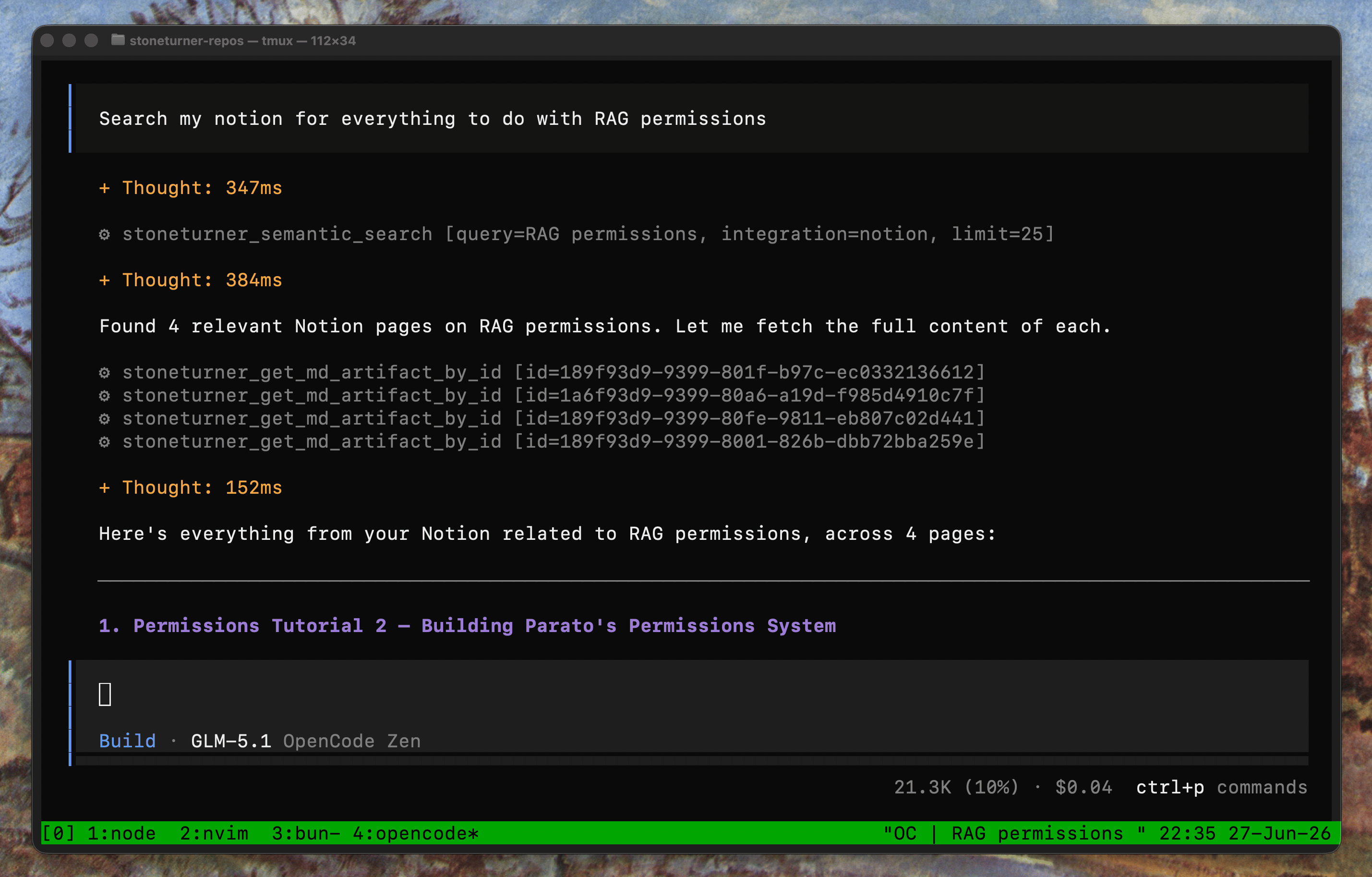 Clone the repository and install dependencies.
```bash theme={null}
git clone https://github.com/jackmuva/stoneturner.git
cd stoneturner
bun install
```
Copy the example environment file and fill in your values.
```bash theme={null}
cp .env.example .env
```
| Variable | Required | Description |
| ----------------------------- | -------- | ------------------------------------------------------------------------------------------ |
| `BUN_PUBLIC_BACKEND_BASE_URL` | Yes | Backend URL, inlined at build time (e.g. `http://localhost:9000`) |
| `FRONTEND_BASE_URL` | Yes | Frontend URL, used for CORS (e.g. `http://localhost:9000`) |
| `AI_GATEWAY_API_KEY` | Yes | API key for the AI gateway (embeddings) |
| `BUN_PUBLIC_DEV_MODE` | No | Set to `true` to create a test database for developing new integrations (default: `false`) |
Generate and apply migrations. This creates a local `stoneturner.db` Turso/libSQL file — no remote database URL is needed for local development.
```bash theme={null}
bun run generate
bun run migrate
```
Start the server with hot reload on port 9000.
```bash theme={null}
bun run start
```
### Connect to Stoneturner
Configure an HTTP-based MCP in your agent config
```bash Claude CLI theme={null}
claude mcp add --transport http stoneturner http://localhost:9000/mcp
```
```json .mcp.json manual add theme={null}
{
"mcpServers": {
"stoneturner": {
"type": "remote",
"url": "http://localhost:9000/mcp"
}
}
}
```
```toml config.toml theme={null}
[mcp_servers.stoneturner]
url = "http://localhost:9000/mcp"
```
```json .config/opencode/opencode.jsonc theme={null}
{
"$schema": "https://opencode.ai/config.json",
"mcp": {
"stoneturner": {
"type": "remote",
"url": "http://localhost:9000/mcp",
"enabled":true
}
}
}
```
1. Go to [ChatGPT's App Settings](https://chatgpt.com/apps#settings/Connectors)
2. Enable **Developer Mode**
3. Create an app and make sure "Authentication" is set to **OAuth**
4. Under "Connection" set it to:
```text Connection theme={null}
http://localhost:9000/mcp
```
1. Go to [Claude's Add Custom Connector](https://claude.ai/customize/connectors?modal=add-custom-connector)
2. Give the connector a name (i.e. Stoneturner)
3. Under "Remote MCP Server URL" set it to:
```text MCP URL theme={null}
http://localhost:9000/mcp
```
Clone the repository and install dependencies.
```bash theme={null}
git clone https://github.com/jackmuva/stoneturner.git
cd stoneturner
bun install
```
Copy the example environment file and fill in your values.
```bash theme={null}
cp .env.example .env
```
| Variable | Required | Description |
| ----------------------------- | -------- | ------------------------------------------------------------------------------------------ |
| `BUN_PUBLIC_BACKEND_BASE_URL` | Yes | Backend URL, inlined at build time (e.g. `http://localhost:9000`) |
| `FRONTEND_BASE_URL` | Yes | Frontend URL, used for CORS (e.g. `http://localhost:9000`) |
| `AI_GATEWAY_API_KEY` | Yes | API key for the AI gateway (embeddings) |
| `BUN_PUBLIC_DEV_MODE` | No | Set to `true` to create a test database for developing new integrations (default: `false`) |
Generate and apply migrations. This creates a local `stoneturner.db` Turso/libSQL file — no remote database URL is needed for local development.
```bash theme={null}
bun run generate
bun run migrate
```
Start the server with hot reload on port 9000.
```bash theme={null}
bun run start
```
### Connect to Stoneturner
Configure an HTTP-based MCP in your agent config
```bash Claude CLI theme={null}
claude mcp add --transport http stoneturner http://localhost:9000/mcp
```
```json .mcp.json manual add theme={null}
{
"mcpServers": {
"stoneturner": {
"type": "remote",
"url": "http://localhost:9000/mcp"
}
}
}
```
```toml config.toml theme={null}
[mcp_servers.stoneturner]
url = "http://localhost:9000/mcp"
```
```json .config/opencode/opencode.jsonc theme={null}
{
"$schema": "https://opencode.ai/config.json",
"mcp": {
"stoneturner": {
"type": "remote",
"url": "http://localhost:9000/mcp",
"enabled":true
}
}
}
```
1. Go to [ChatGPT's App Settings](https://chatgpt.com/apps#settings/Connectors)
2. Enable **Developer Mode**
3. Create an app and make sure "Authentication" is set to **OAuth**
4. Under "Connection" set it to:
```text Connection theme={null}
http://localhost:9000/mcp
```
1. Go to [Claude's Add Custom Connector](https://claude.ai/customize/connectors?modal=add-custom-connector)
2. Give the connector a name (i.e. Stoneturner)
3. Under "Remote MCP Server URL" set it to:
```text MCP URL theme={null}
http://localhost:9000/mcp
```